
In this article:
Hybrid ticketing offers you maximum flexibility in ticket distribution, allowing you to seamlessly combine your Hospitality Management with regular ticket sales via your event website.
This gives you the opportunity to serve two target audiences simultaneously through separate channels:
- Contingent Management via "Hospitality": Here, sponsors or partners (hosts) receive a ticket contingent that they can flexibly assign to their own guests, while you always keep track of the overall capacity.
- Public Ticket Sales: In parallel, public ticket sales run through your event website. Visitors can easily purchase their tickets themselves, with the entire process - from payment to invoice dispatch - running fully automated in the background.
Please note:
This article highlights the usage and necessary adjustments when combining both modules. The basic setup for these modules can be found in the respective articles for Ticketing and Hospitality.
Activation & Requirements
To use hybrid ticketing, the following requirements must be met:- Configure Seller Data: Before you can use the Ticketing, your seller data must be set up. If you are interested in using Ticketing, please contact your Account Manager or the Customer Success Team so we can set up your seller data.
- Enable Modules: Ensure that both the "Hospitality" (Host Management) module and the "Tickets" module are activated in your event settings.
Please note:
The Hospitality module is an add-on feature. If you are interested in this function, please contact your Account Manager or the Customer Success Team.
Setting Up Ticket Types & Defining Host Prices
Once both the Ticketing and Hospitality modules are activated, you can determine whether hosts and regular website visitors see different prices for your ticket types. This allows you to offer tickets from a single contingent at different prices across both channels.- Navigate to "Ticket Types" within the "Tickets" module.
- Click on the desired ticket to make adjustments or create a new ticket type.
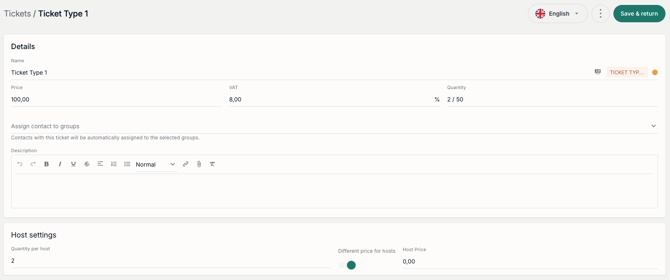
- In the ticket details, scroll down to the "Host Settings" section.
- Enable the "Different price for hosts" toggle to define a different price applicable only to hosts.
- Toggle disabled: If the toggle is turned off, hosts will automatically see the standard, public price of the ticket.
- Toggle enabled & price field empty: Do you want regular visitors to pay for the ticket while your hosts receive it completely free of charge? Simply enable the toggle but leave the price field behind it completely blank. The system automatically recognizes this, and the ticket will be free for your hosts!
Please note:
When using hybrid ticketing, it is unfortunately not yet possible to set up tickets group-specifically. This means that at the moment, all ticket categories are visible to everyone, both in the regular purchase process and during ticket booking by the hosts.
After entering all ticket content and prices, click the Go-Live button to activate ticket sales and the "Tickets" widget on your website.
Checking the Website Setup
If you have specified in your Hospitality settings that the hosts' guests should register themselves (meaning registration is not handled entirely by the host), you need to set up a second website within your event:
- Standard Website: Use the "Tickets" widget here. This website is where your public guests can purchase tickets and register.
- Second Website (for Host guests): Instead of the "Tickets" widget, use the "Registration" widget here. This allows contacts who have already been assigned a ticket by a host to register directly on this website without going through the regular purchasing and payment process
Ticket Overview & Analytics
As soon as your tickets are sold via the website or assigned by your hosts, you can analyze the performance of your ticket types separately by channel.
To do this, navigate to "Ticket Types" in the "Tickets" module. The system dynamically differentiates between two views:
- One-Channel-View (Standard): Displays a compact view of a single price and ticket count.
- Two-Channel-View (Advanced): Displays the ticket broken down into two separate channels, along with the total count:
- Website & Direct: This counts all tickets sold via the webshop on the event website, as well as tickets assigned directly to contacts from the event quota by an event manager.
- Host Booking: This shows the tickets booked by hosts from their respective contingents.

The advanced "Two-Channel View" triggers automatically for a ticket type as soon as:
- The event is set to "Go-Live" and the Hospitality module is enabled.
- A separate price for hosts has been configured for that ticket.
- The first booking or ticket assignment has occurred on the alternative channel.
Important Background System Logics
- Unified Ticket Inventory: The system manages a single, shared ticket pool. Tickets blocked by host contingents are immediately deducted from the public pool, effectively preventing your event from being overbooked.
- Module Interaction: Disabling the Hospitality module hides host-specific fields. However, your previously entered host management data and prices remain stored in the database and will be immediately active again once you re-enable the module.
- VAT Consistency: The VAT rate is identical for both channels. Because VAT is tied to the ticket type category rather than the target audience or channel, it cannot vary.